
Power, radio, network — test the layers in order
A smart light stays online only while three layers hold: mains power reaching it continuously, a radio link to the router or hub with adequate signal, and a healthy network layer beneath — free addresses, a stable 2.4 GHz environment, and a router not drowning in clients. The app's 'offline' badge collapses all three into one word, which is why guessing fails and layer-by-layer testing works.
Patterns point at layers. Offline every evening at the same time: someone's wall-switch habit or a scheduled automation. Offline when the microwave runs or the neighbors get home: 2.4 GHz congestion. Offline in exactly one room: reach. Offline in herds after adding devices: addresses or client limits. One week of noting when beats a month of re-pairing.
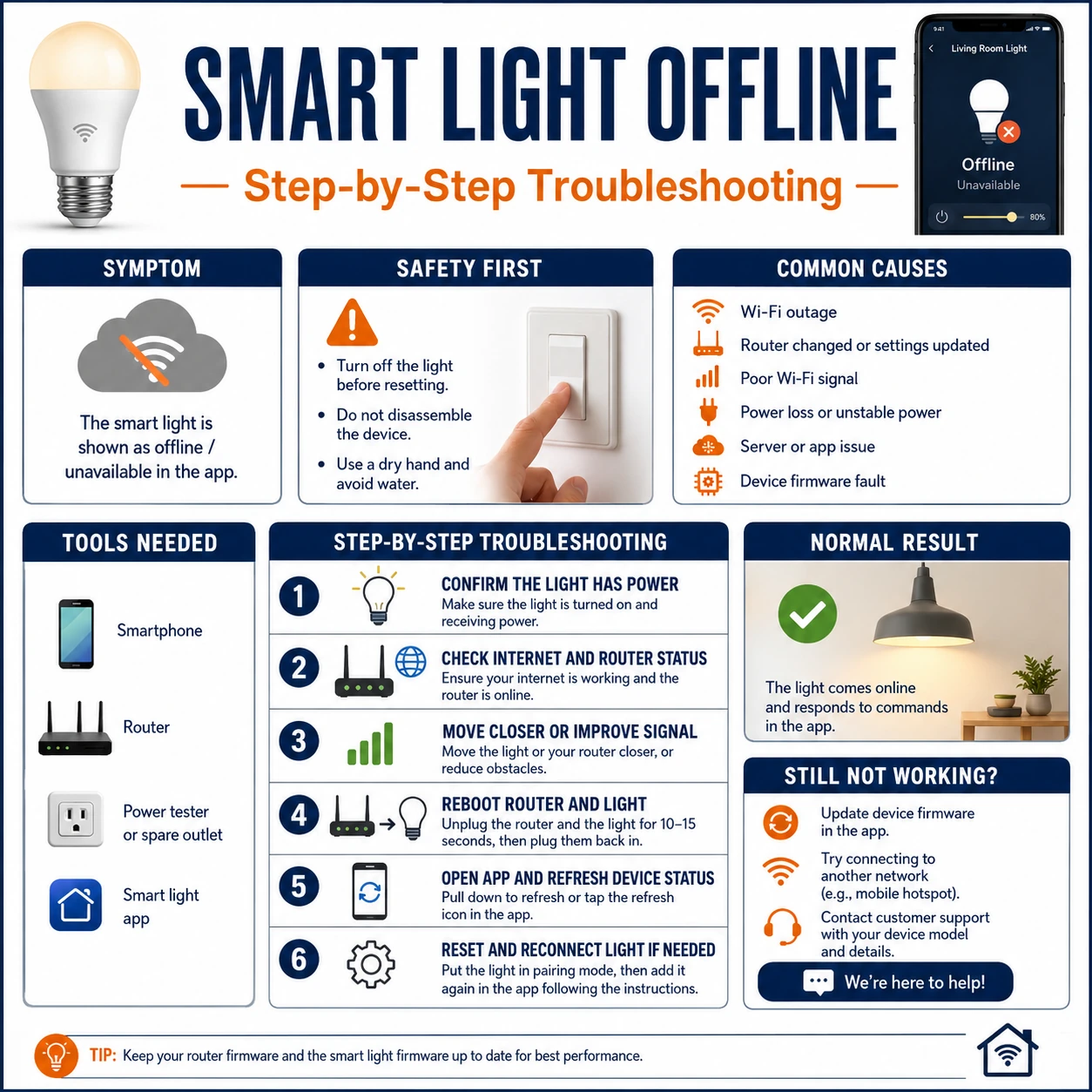
Prepare before testing
- The light's app and its connection-strength screen — many apps report signal quality per device — the free site survey
- Router admin or app — client counts, DHCP pool size, band settings and channel selection live there
- A phone Wi-Fi analyzer app — shows 2.4 GHz congestion and signal strength at the light's location
- Sticky notes for the wall switches — the cheapest uptime device in smart lighting
All observational. If the investigation leads toward rewiring a switch to keep power always-on, that step is an electrician's, not a settings change.
Check these areas first
- Wall switch cutting power. a switched-off smart bulb is not 'off', it is unplugged — and offline within a minute
- Radio starvation. distance, metal fixtures, masonry walls and mesh nodes serving the wrong band
- 2.4 GHz congestion. crowded channels shared with neighbors, microwaves and baby monitors
- DHCP pool exhaustion. routers defaulting to small address pools run dry as smart homes grow
- Router client limits and band changes. consumer routers quietly cap concurrent clients; firmware updates rearrange bands
Diagnostic procedure
Confirm continuous power first — it explains more dropouts than everything else combined — then work outward through signal, infrastructure order, and the router's bookkeeping.
Guarantee continuous power
Establish whether the light's wall switch (or a smart plug, or an automation) ever cuts it. Ask the household honestly, put a labeled note on the suspect switch for a week, and check plug schedules. A smart light needs standing power the way a phone needs its battery; everything else in this guide assumes it.
Read the signal where the light lives
Use the app's per-device signal indicator, or hold a phone running a Wi-Fi analyzer beside the fixture. Note the reading with the fixture's shade and trim in place — metal shades and recessed cans eat signal that open air measurements miss. Weak signal here routes the case to reach; strong signal routes it to network health.
Restart the chain in infrastructure order
Power-cycle in sequence: router first, wait for full boot; then any hub or gateway; then the light itself. Order matters — a light rebooting into a router that is still starting learns nothing useful. One correct chain restart outperforms a dozen impatient bulb-only resets, and clears stuck states honestly.
Improve reach where reach is the verdict
For weak-signal fixtures: relocate the router or hub even a meter toward the problem room, lift it off the floor, clear the metal cabinet it hides in — or add a mesh node or repeater serving 2.4 GHz near the fixture cluster. Recheck the per-device signal after each change; one physical move often rescues a whole room.
Audit addresses and client counts
In the router's admin: compare the DHCP pool size against the device count (a default pool of a few dozen strangles a growing smart home — widen it), look for client-limit settings, and count what is actually connected. Herd dropouts after the smart home grew past a threshold are this, and the fix is administrative, not radio.
Back up before any re-pairing
Only after layers one through five, consider removal and re-adding — and first, record what deletion destroys: device names, room assignments, scenes and automations referencing the light. Photograph the screens. Re-pair once, rebuild from the notes, and treat any future dropout as a layer problem — because it is.
Untangling 2.4 GHz in a crowded building
The 2.4 GHz band has only three non-overlapping channels (1, 6, 11), shared with every neighbor, microwave oven and legacy gadget in range. A Wi-Fi analyzer shows the local battlefield in seconds: if your router shares a channel with three strong neighbors, fix it to the emptiest of the three clean channels rather than leaving it on auto — consumer auto-selection is sluggish and often wrong in dense housing. Keep smart-light traffic modest (long polling intervals, no cloud video through the same band where avoidable), and if the household is heavily loaded, a Zigbee- or Thread-based hub moves the lighting entirely off Wi-Fi's most contested real estate — often the decisive upgrade in apartment blocks.
Making peace between wall switches and smart bulbs
The deepest cause of offline complaints is architectural: smart bulbs assume standing power, wall switches exist to cut it, and houseguests side with the switch every time. Three peace treaties exist, in rising order of cost: switch guards or labels that make the intent visible; smart switches or switch covers that control the bulb by command while never cutting its mains; or moving the intelligence into the switch itself (smart switch plus dumb bulbs) in rooms where the switch habit is unbreakable. Choose per room by who uses it — the guest bathroom argues for a smart switch, the enthusiast's desk lamp is fine on standing power.