
Pairing fails at the power, the rhythm, the radio, or the record
Four independent systems must cooperate for a pairing to succeed. Power: the bulb needs clean, full, uninterrupted mains — a dimmer at 80% or a smart switch upstream starves or resets it mid-handshake. Rhythm: entering pairing mode is a brand-specific dance of on-off cycles with specific timing. Radio: nearly every Wi-Fi bulb speaks only 2.4 GHz, and modern band-merged routers can effectively hide it. Record: a bulb bound to someone's account will flash, pair, and then refuse to complete setup until that binding is released.
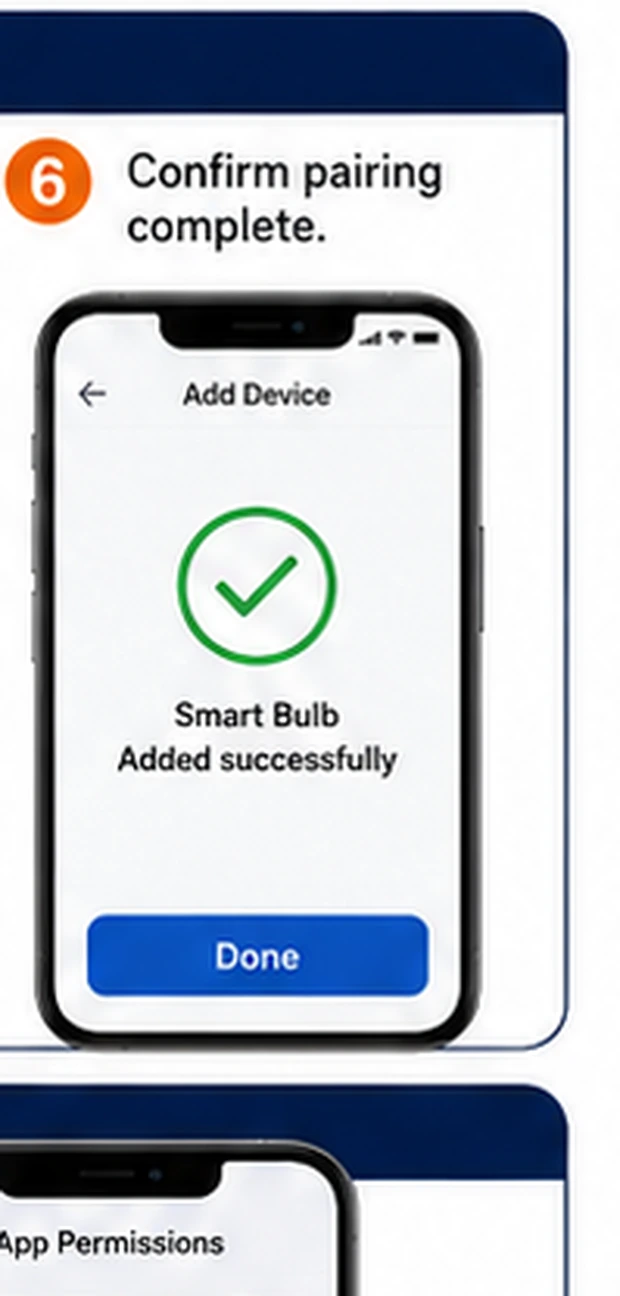
The failures look identical from the couch — 'it won't pair' — but each leaves a distinct fingerprint: a bulb that never flashes has a power or rhythm problem; one that flashes but the app never finds it has a radio problem; one the app finds but setup errors out near the end has an account problem.
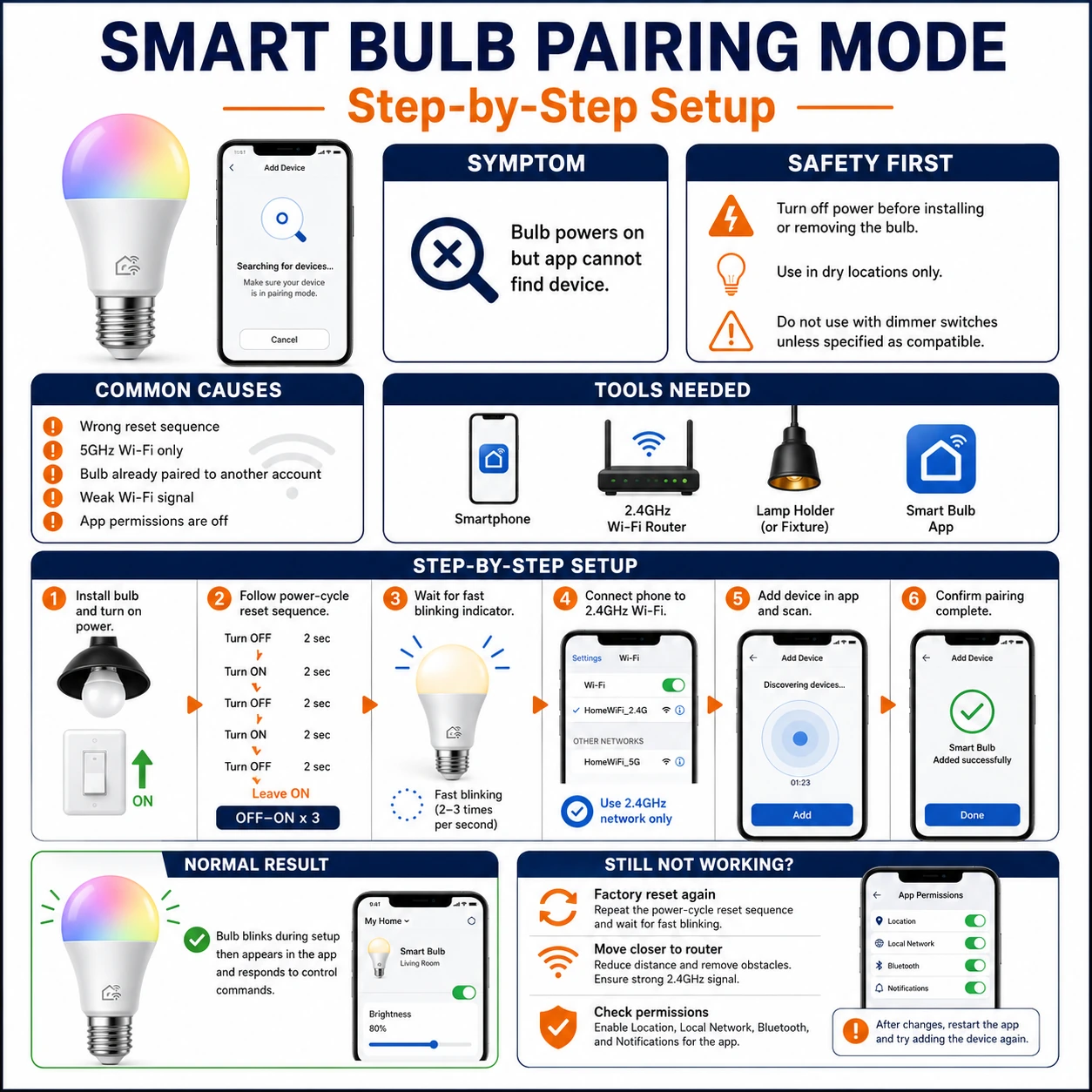
Prepare before testing
- A plain, non-dimmed lamp socket — the reference environment every pairing attempt deserves
- The bulb's brand app and manual — reset rhythms are brand-specific; guessing wastes cycles
- Router admin access or the router app — for the 2.4 GHz visibility check and a temporary guest network if needed
- A phone with Wi-Fi and Bluetooth on — many bulbs use Bluetooth for first contact even on Wi-Fi models
Bulb swapping is safe with the switch off; the only real hazard is a hot bulb fresh from a failed session — give it a minute before unscrewing.
Check these areas first
- Dimmer or smart control upstream. chopped or interrupted power prevents the bulb from ever reaching its reset state
- Wrong reset rhythm. brands differ in cycle counts, timing and the final on/off state; one brand's dance fails another's bulb
- 2.4 GHz invisible. band-merged SSIDs, 5 GHz-only mesh nodes, or WPA3-only settings hide the network the bulb needs
- Connection slots or old bindings. the bulb still belongs to a previous account, or the app's device limit is reached
- Genuine bulb failure. rare, and only claimable after the bulb proves it cannot even light steadily
Diagnostic procedure
Prove the bulb lights, strip the power path to bare mains, perform the brand's actual rhythm, then fight the radio and account battles — in that order, because each step is pointless until the previous one passes.
Prove the bulb lights on clean power
Screw the bulb into a known-good, non-dimmed socket — a plain bedside lamp is ideal — and switch on. It should light steadily within a couple of seconds and stay lit. A bulb that flickers, pulses dimly or stays dark on clean power has a hardware problem no pairing procedure will cure.
Remove every controller from the power path
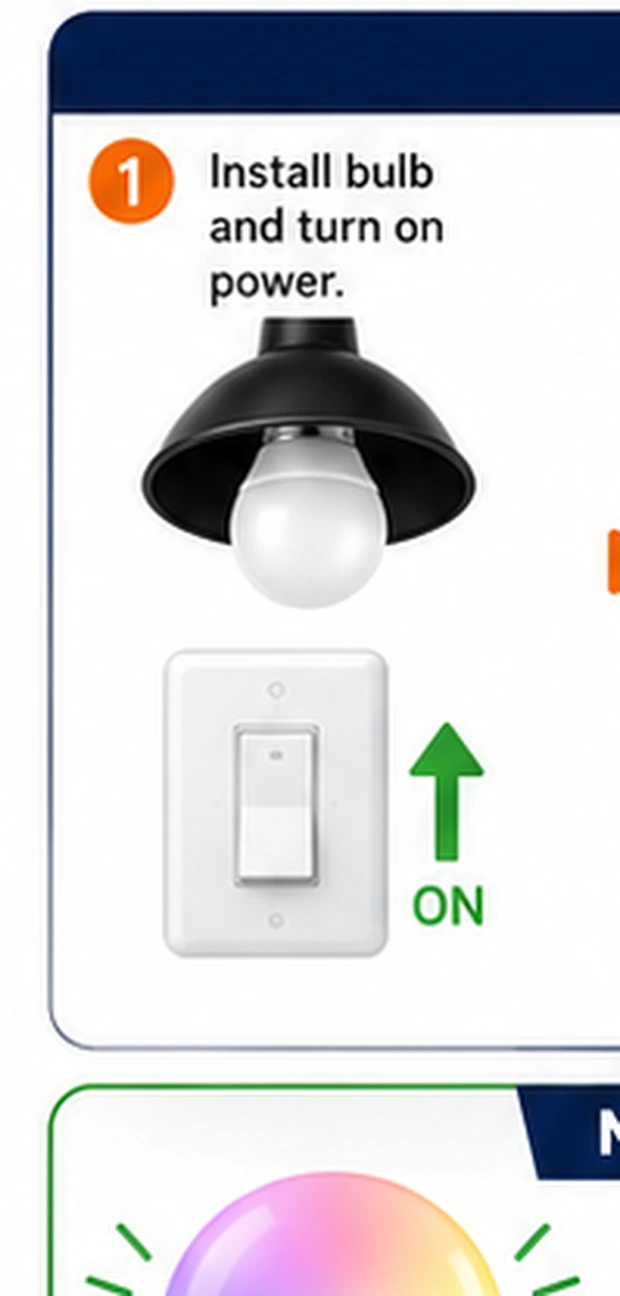
For the pairing session, take dimmers, smart switches, motion sensors and timer plugs out of the chain: set a wall dimmer to 100% or bypass it, and use a dumb switch or plain socket. Smart bulbs pair on stable full mains; anything modulating the supply corrupts the reset counting that follows.
Look up this model's exact reset rhythm
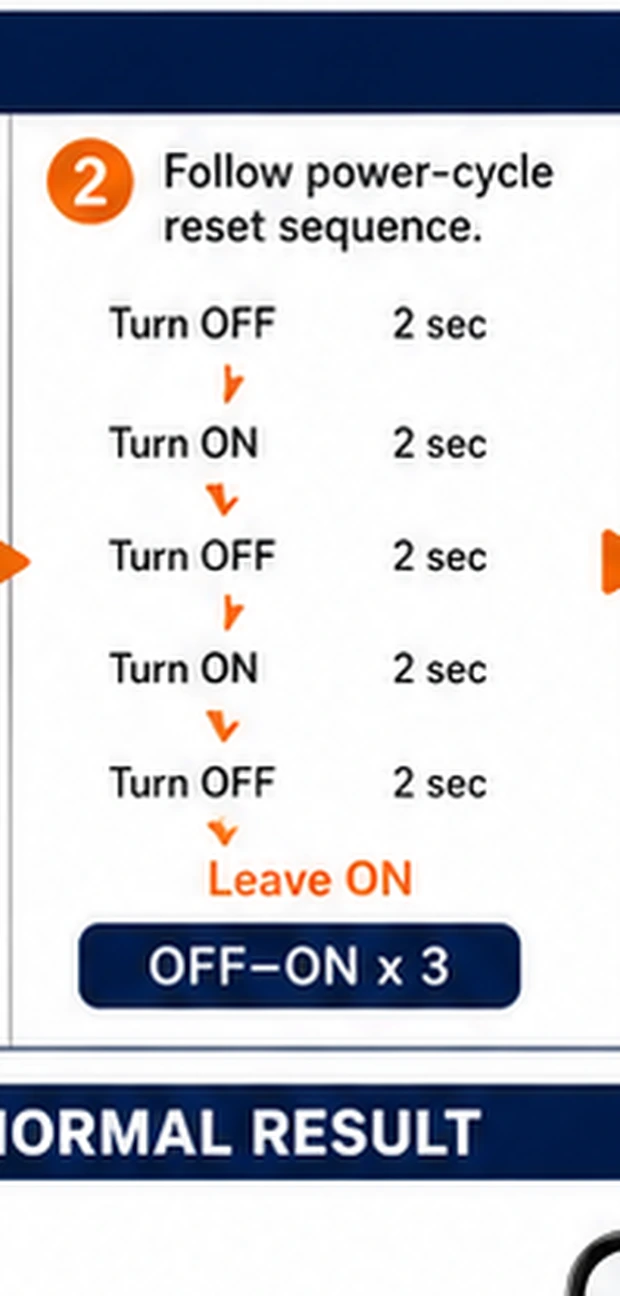
Find the brand's documented procedure — commonly five or six on-off cycles with roughly one second on and one off, ending ON, but brands vary in count, tempo and final state, and some newer bulbs use a dedicated app-triggered reset instead. Note the confirmation signal too: fast flash, breathing pulse, or a color change.
Perform the rhythm deliberately and wait
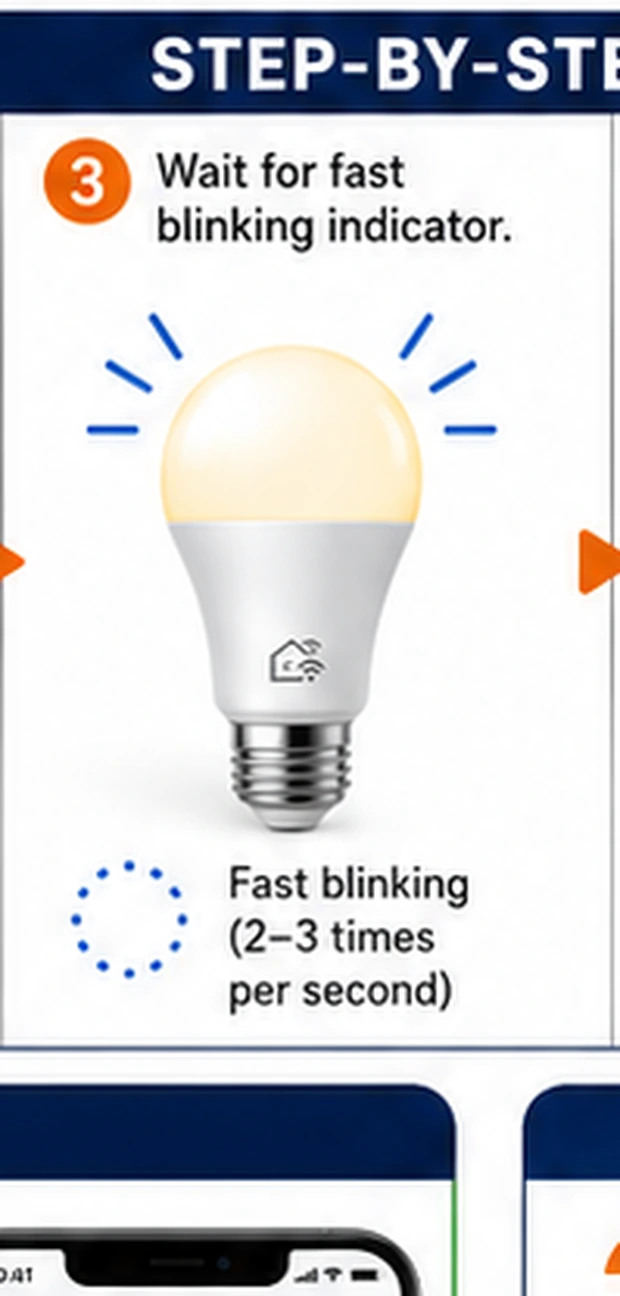
Execute the cycles with a steady hand — a full second on, a full second off, counted aloud if it helps — then leave the bulb powered and wait up to ten seconds for its confirmation flash. Rushed half-second cycles are the most common self-inflicted failure; the bulb counts power interruptions, not intentions.
Try the alternate pairing mode
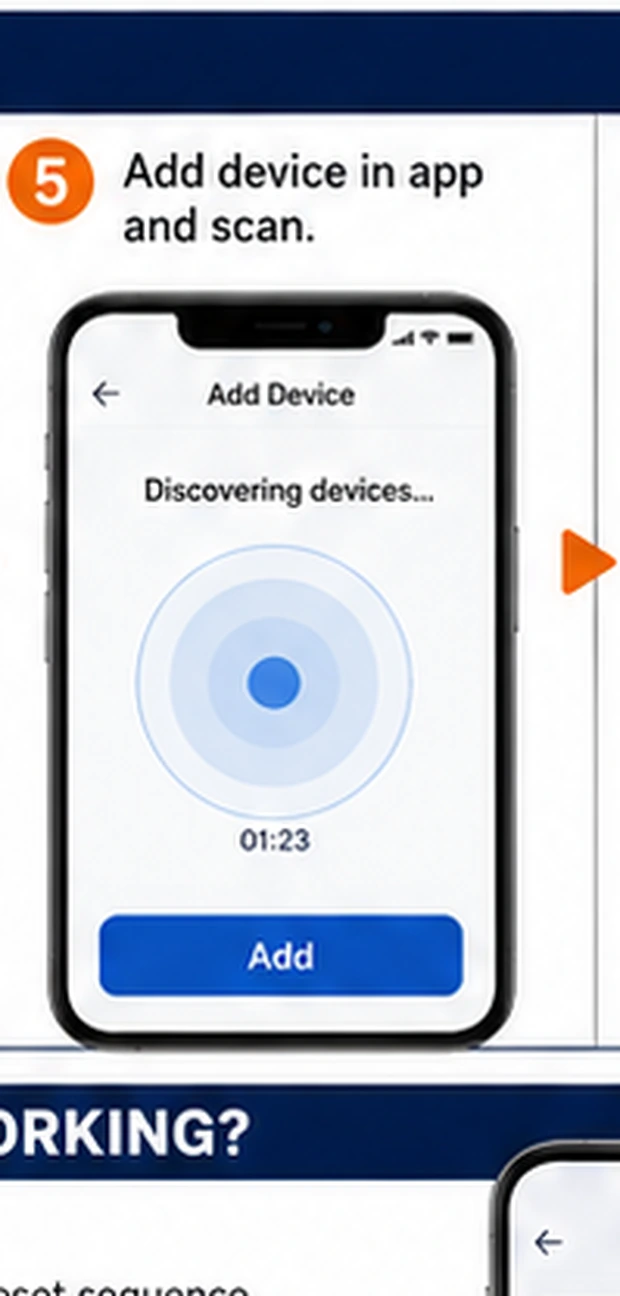
Many bulbs carry two modes: fast-flash (direct app pairing) and slow-breathing (the bulb hosts a temporary hotspot your phone joins). If the app stalls in one mode, switch — usually by repeating the reset while already in pairing mode — and follow the app's corresponding flow. Keep the phone within a few meters and on the target 2.4 GHz network.
Release old bindings
If setup errors out with 'device already bound' or the bulb pairs then vanishes: it belongs to an existing account — a previous household member, or your own older account. Remove it from the original app under that account, or use the brand's unbind/ownership-transfer support flow with proof of purchase. Factory-reset again after release.
Making the only band the bulb speaks visible
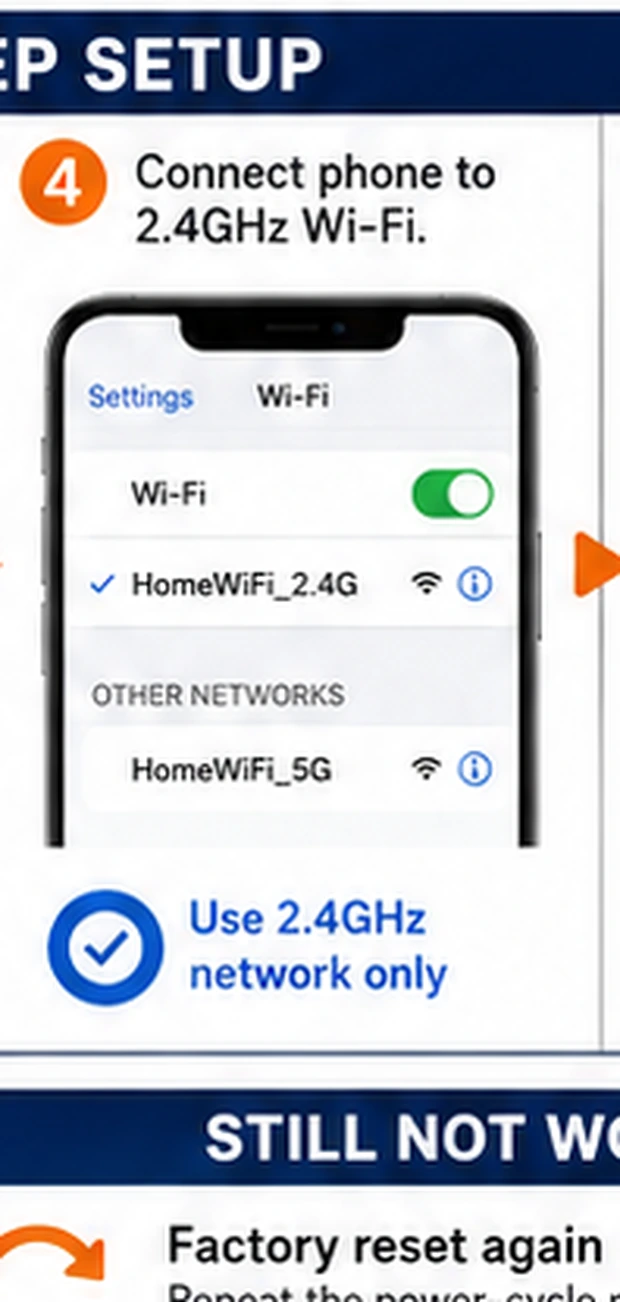
Most smart bulbs carry a 2.4 GHz-only radio, and three router conveniences defeat them. Band steering merges 2.4 and 5 GHz under one SSID and pushes capable phones to 5 GHz — the app then tries to hand the bulb a network the phone is on but the bulb cannot join. Fixes, cheapest first: stand far enough from the router that the phone itself falls back to 2.4 GHz during pairing; temporarily split the bands into separate SSIDs and join the phone to the 2.4 GHz one; or spin up a 2.4 GHz-only guest network just for onboarding. Two settings also bite: WPA3-only security (older bulb chips need WPA2 or mixed mode) and 'client isolation' on guest networks, which pairs the bulb then walls it off from the app. After onboarding, merged SSIDs can usually be restored — the bulb remembers the credentials, not the router's marketing features.
Habits that make the next bulb boring
Pair new bulbs one at a time — three identical bulbs in pairing mode present the app with an ambiguity it handles badly. Name each immediately, into its final room, and note the brand's reset rhythm in the household notes once; every future bulb of that brand reuses it. And before selling, gifting or binning any smart bulb, factory-reset and remove it from the account — the unbind step that takes ten seconds now is the support-ticket someone else avoids later.